

SAP Named User Optimization: Auditing Professional vs. Platform Licenses
SAP user licensing is based on Named Users. A Named User is an individual employee, contractor, or external user authorized to access the SAP software.
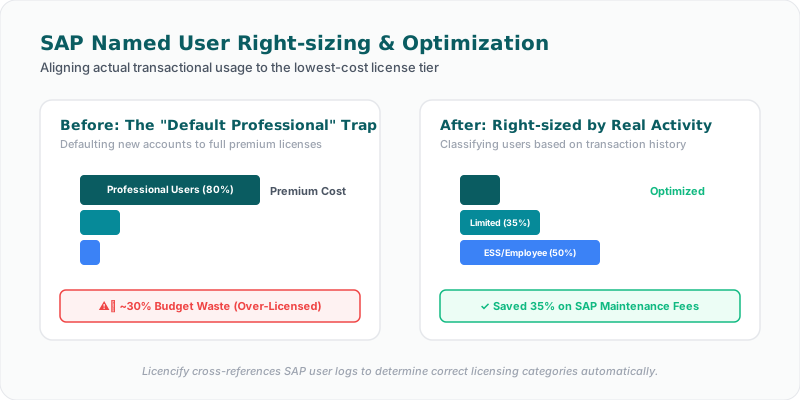
But not all users are created equal. SAP offers multiple Named User license types, ranging from the highly expensive Professional User (which allows full write/read access to all modules) to cheaper categories like Limited Professional, Employee, or Employee Self-Service (ESS).
Because of this tiered system, organizations frequently overpay SAP by 15% to 40% simply because they fail to align actual user activity with the assigned license types.
The Default Professional Trap
The most common source of waste in SAP user licensing is the default assignment rule.
When a new user is created in SAP, the system default is almost always set to Professional User. If your IT team does not manually classify the user according to their actual job function and access requirements:
* The user remains registered as a Professional.
* During the annual system measurement (LAW audit), SAP counts them as a Professional.
* You pay the premium license and maintenance rate for that user.
In reality, a user who only logs in to submit time sheets or approve expense reports does not need a Professional license. They can be covered by a cheap ESS or Employee license, which costs a fraction of the price.
Understanding the Named User Categories
To right-size your licenses, you must understand the limits of each category:
1. Professional User: Full access to all transactional, operational, and administrative areas of the system.
2. Limited Professional User: Allowed to perform write and read transactions, but restricted to specific modules or functions (e.g., only purchasing, or only logistics). The exact limitations must be defined in your specific contract's Software Use Rights.
3. Employee User: Typically limited to run operational, display-only, or simple self-service transactions.
4. ESS/MSS (Employee/Manager Self-Service): Strictly restricted to HR tasks, time entries, expense submissions, and simple approvals.
How to Optimize Your SAP Named Users
To reclaim wasted license spend, execute a user right-sizing audit using these three steps:
#### Step 1: Perform Forensic Usage Analysis
Don't rely on job titles or what users say they do. Run reports to analyze their actual system activity over the last 90 to 180 days:
* Identify which transaction codes (T-codes) they are running.
* Compare their transaction history with the Software Use Rights of each license type.
* If a "Professional" user has only run display transactions (VA03, MM03) or self-service tasks, flag them for a downgrade.
#### Step 2: Consolidate Duplicate Accounts
During the annual LAW (License Administration Workbench) measurement, SAP will flag duplicate users across your landscape. However, if a user has different usernames in different systems (e.g., JSMITH in ECC and JOHN.SMITH in SRM), they may be counted twice. Ensure that every user has a consistent, unified identifier (like an employee ID) across all systems so the LAW tool consolidates them into a single license.
#### Step 3: Deprovision Inactive Users
Users leave the company, move to new roles, or go on long-term leave, but their SAP accounts often remain active. Define a rule that locks and deactivates any account that has not logged in for 90 days. This harvests the license back into your pool, preventing the need to buy new user entitlements.
Facing an active Oracle or SQL Server Audit?
Verify database parameters and virtualization host boundaries locally without raw data uploads. Download our secure gateway.